Marketing · Marketing Studio
Describe the ad. Approve the plan. Review the cut.
Marketing Studio turns a brief into a plan, renders the images and videos, and stops for your yes before a credit is spent. It reads your Meta ads and ranks them by what sold. Everything approved lands in a library your whole team shares.
Apple silicon · Version 0.1.41
Web app in any browser · macOS app for Apple silicon · reviews on your iPhone
- Plan → run
- every task shows its steps before it starts
- Key frames
- approved before a video renders
- 8 s – 1 min
- videos, in 9:16, 1:1, 4:5 or 16:9
- Ranked
- Meta ads by purchases and cost per purchase
Tasks
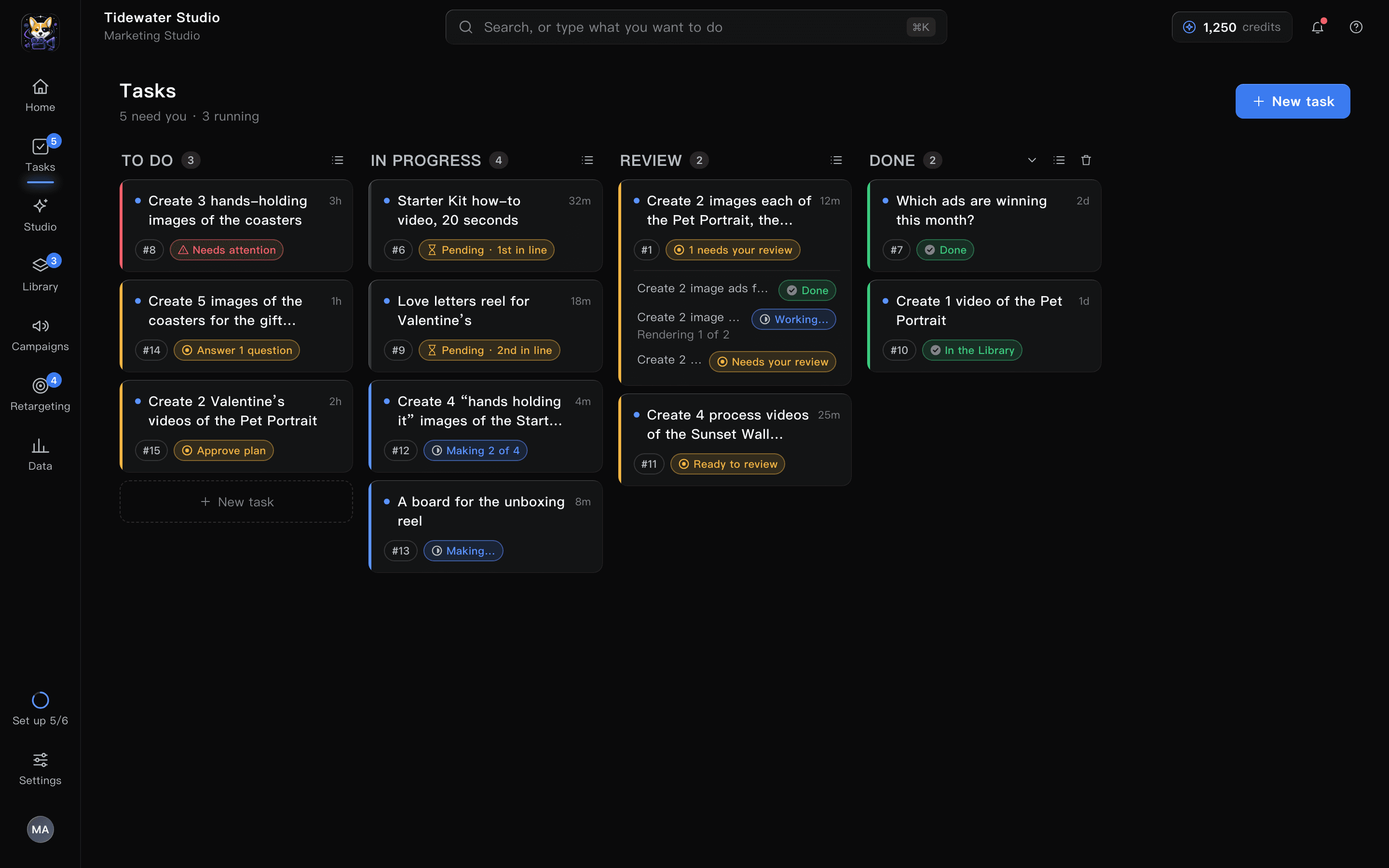
Marketing work as tickets, with an agent on the other side
Write what you need in plain language, attach a product photo or a link, and create the task. The planner asks what it must, proposes numbered steps and says what it will create and what it will cost. Approve the plan, run it, and watch it move across the board.
- To do, In progress, Review and Done, with live updates
- One task fans out into several jobs, five videos at once
- A queue with your place in line, pause, move up and execute again
Review gate
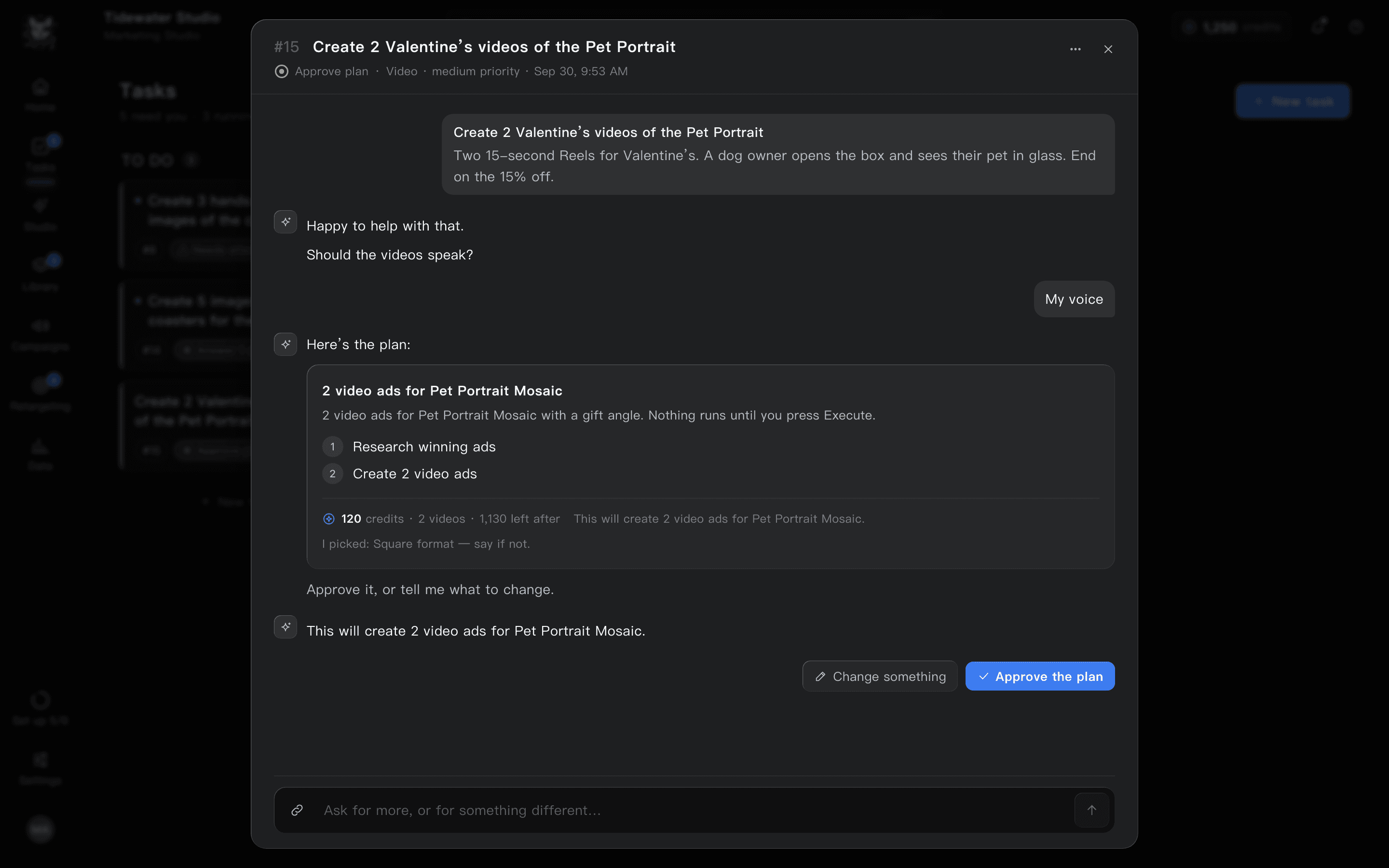
Nothing renders without your yes
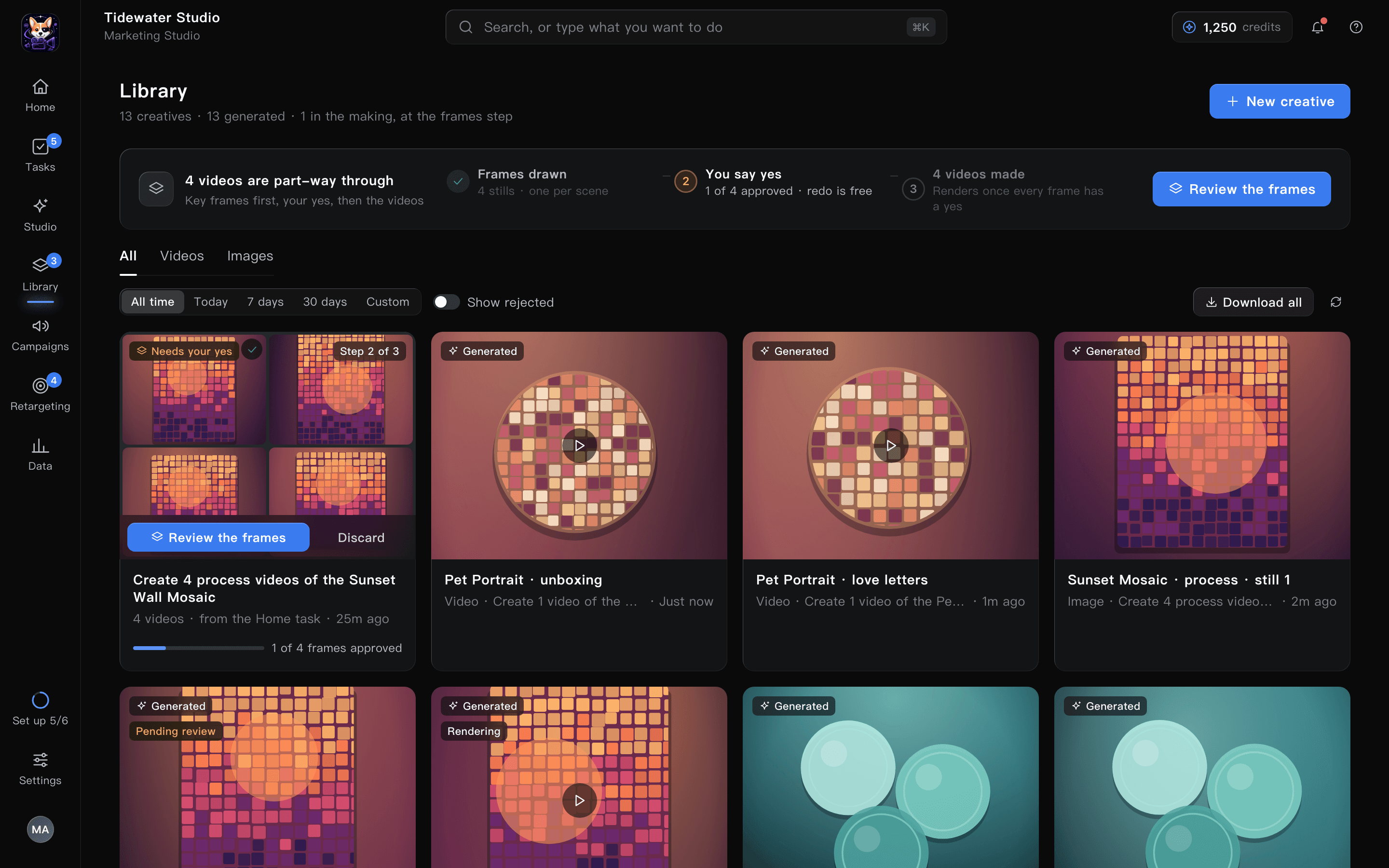
Key frames are drawn first and wait for you. Approve the ones you like, ask for changes with a note, or skip. Only then do the videos render, and they come back to the same gate. A change request returns as version 2 in the thread, next to version 1.
- Approve, ask for changes, skip, or approve all
- Versions kept side by side
- Standing rules, organisation-wide and per product, prepended to every run
Creative studio
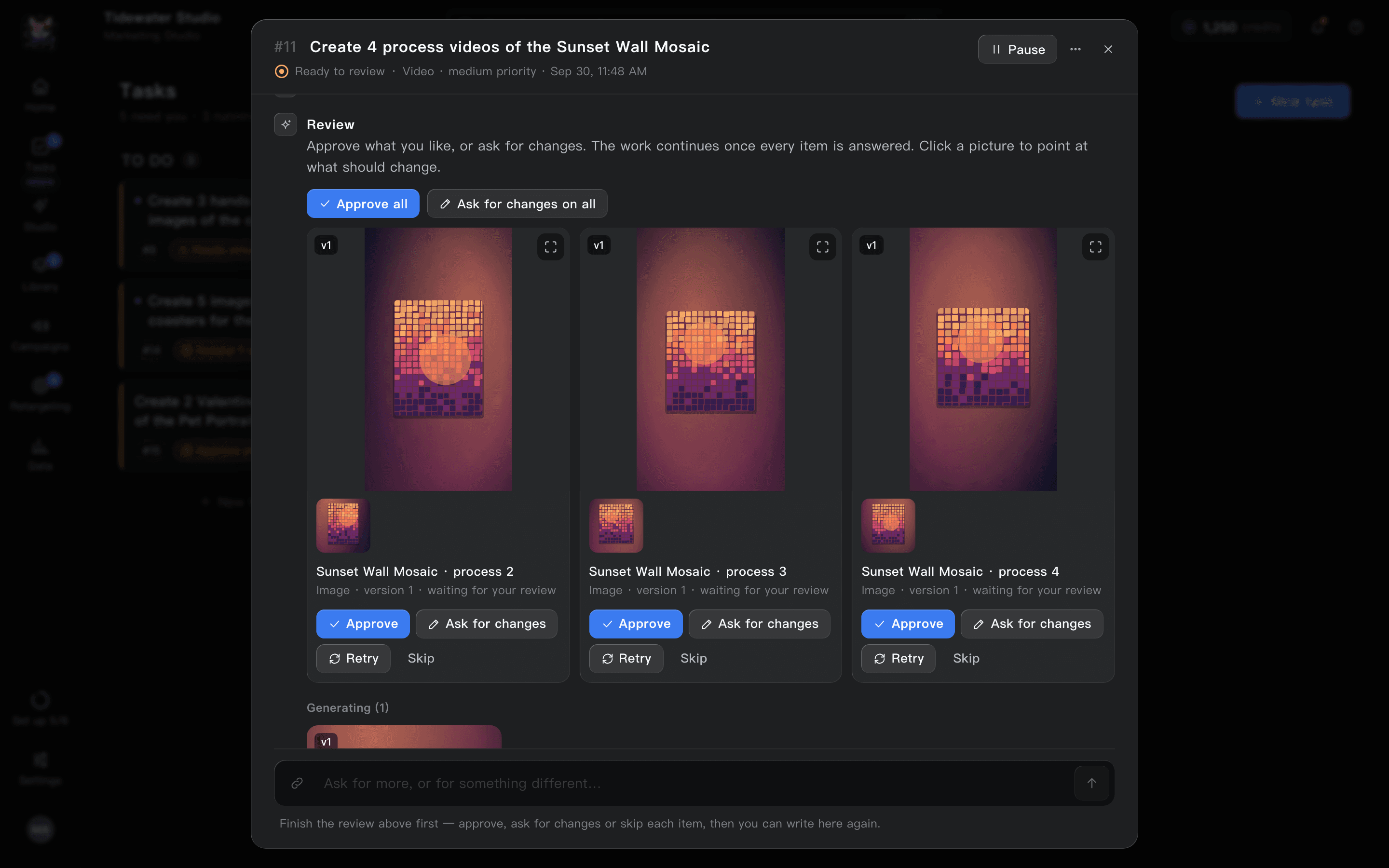
From your product photos to a script, a length and a layout
The wizard walks from the product to the finished brief: video or image, the type (unboxing, a model presenting, before and after…), a theme or holiday, the script in hook, body and call to action, then the length and the layout. It ends in a real task on the board.
- Your organisation’s real products, from the brand settings
- Themes and holidays, with trends flagged
- A summary bar with the resolution, length, layout and credit cost
Library and Meta
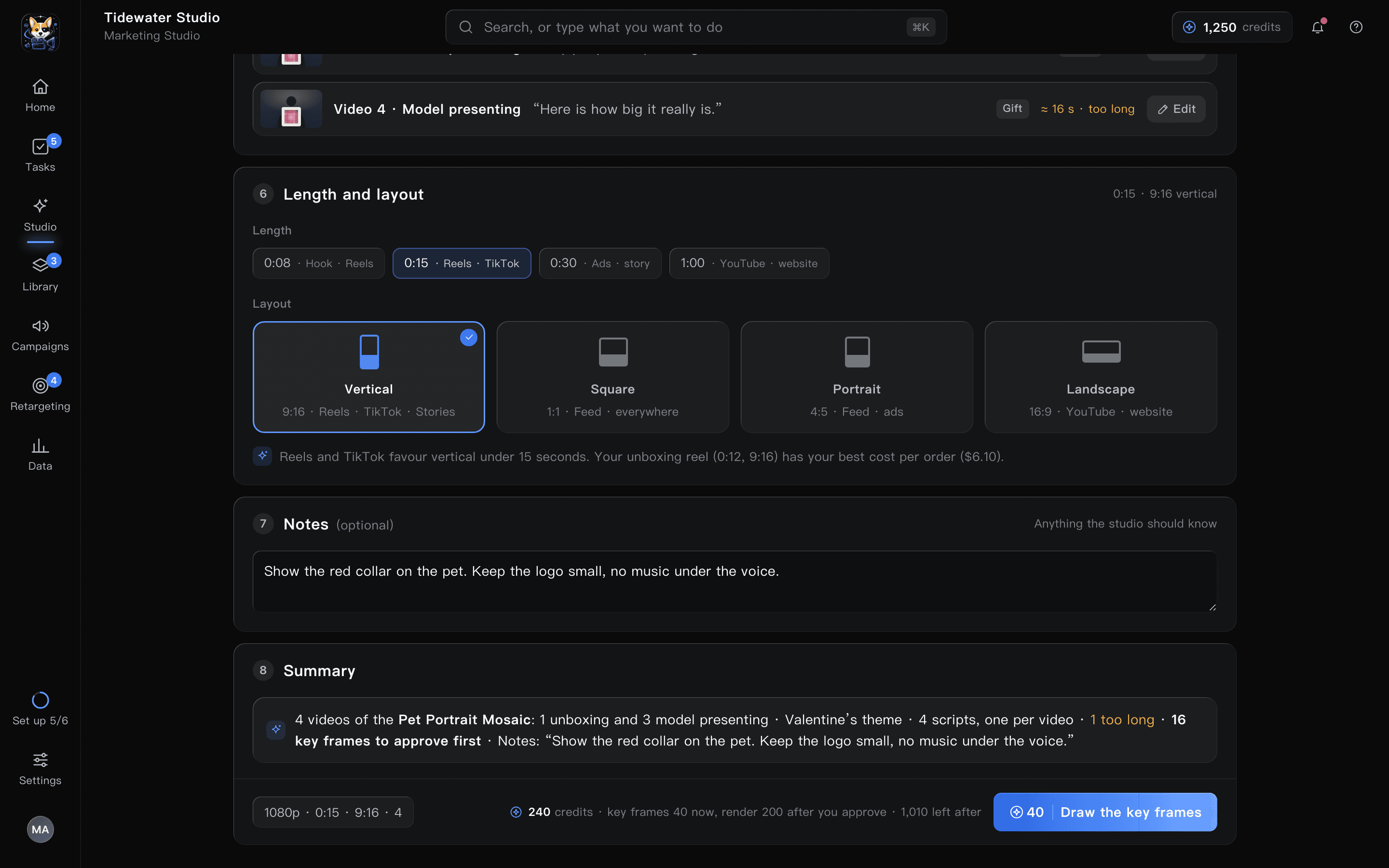
What was approved, and what actually sold
Approved renders land in the Library, filtered by type and date, downloadable one by one or all at once, with the task that made them one click away. Ask the same thread to read your Meta ads and it ranks them by purchases and cost per purchase, thumbnails included.
- All, videos, images; show rejected; download all
- Copy a link to share a creative
- Meta ads insights as a ranked table inside a task
Everything in the box
A studio, run like a project
The everyday tools of a small marketing team, with the planner doing the legwork.
New task
A title, a description in markdown, attachments or a URL; create it, or create and start.
Plan card
Questions as chips, then numbered steps, “This will…”, and the credit line.
Jobs
One task, several renders, each with its own tab under Results.
Queue
Pending and your place in line; move up, move down, remove, pause.
Standing rules
Organisation-wide and per-product rules every run follows.
Brand and products
Set once in the Tedooo OS console; the studio reads them.
⌘K
Search, or type what you want to do.
Credits
The organisation’s creative credits, shown in the top bar and on every plan.
Web and desktop
The same live state in the browser and the Mac app.
Better on Tedooo OS
The marketing desk of the OS
The brand, the products, the Meta account and the credits live in the Tedooo OS console; every app that needs them reads them there.
- Tedooo OS for iPhone
The review feed on your phone
Variants ready for review are a push. The phone shows them full screen with inline video: approve, change, talk or skip, and save the ones you like to Photos.
Tedooo OS for iPhone - Tedooo Panel
Ads beside the funnel
Panel’s Meta Ads report reads the same account, so spend and purchases sit next to the product events the campaign drove.
Tedooo Panel - Tedooo Support
The coupon you promised
Coupons the support team offers in a reply are the organisation’s own, and each member’s role says whether they may send one.
Tedooo Support
For the organisation
Under the control of your admins
What the console decides for this application, for every member.
- Meta and the creative provider connected once in the console, encrypted at rest
- The board is per person; the Library is the organisation’s
- Standing rules that every run must follow
- Credits and the plan read from the organisation, never per user
- Team, brand and billing edited in the console only
- The same Google sign-in and organisation as the rest of Tedooo OS
FAQ
Questions, answered
Give your marketing team a planner
Open Marketing Studio in the browser or install it on your Mac. The first task is a brief and a product photo.
The rest of Tedooo OS
- EngineeringTedooo Code
Every coding agent, every project, one prompt.
- Customer supportTedooo Support
Every ticket drafted, scored and sorted by urgency.
- AnalyticsTedooo Panel
Product analytics with your business data beside the events.
- On your phoneTedooo OS for iPhone
Every decision the OS needs from you, on your phone, as a push.